


Blog
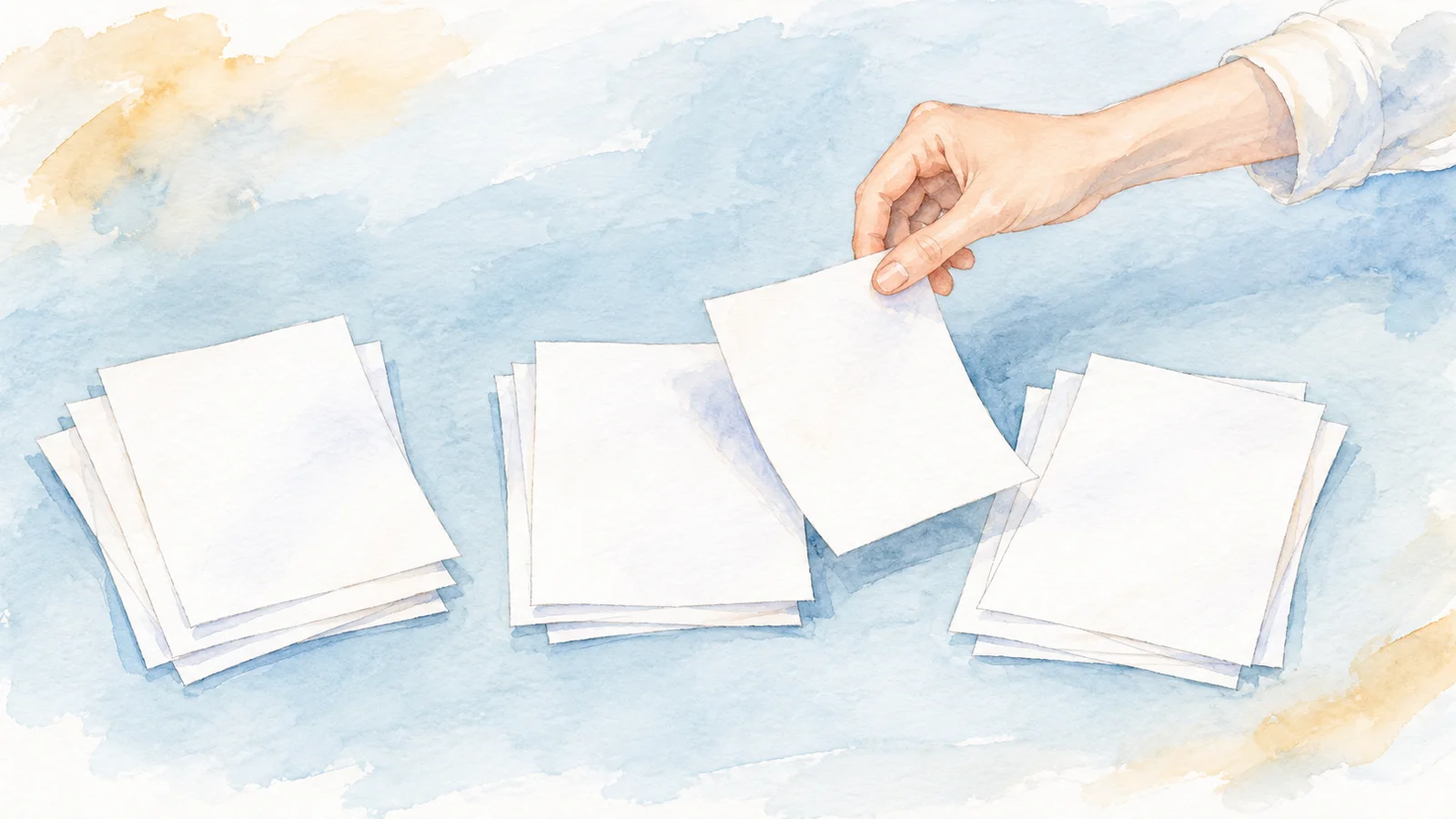
Scan in small batches and check page order
Start with a manageable group of loose pages, then compare the saved file with the paper before moving on.
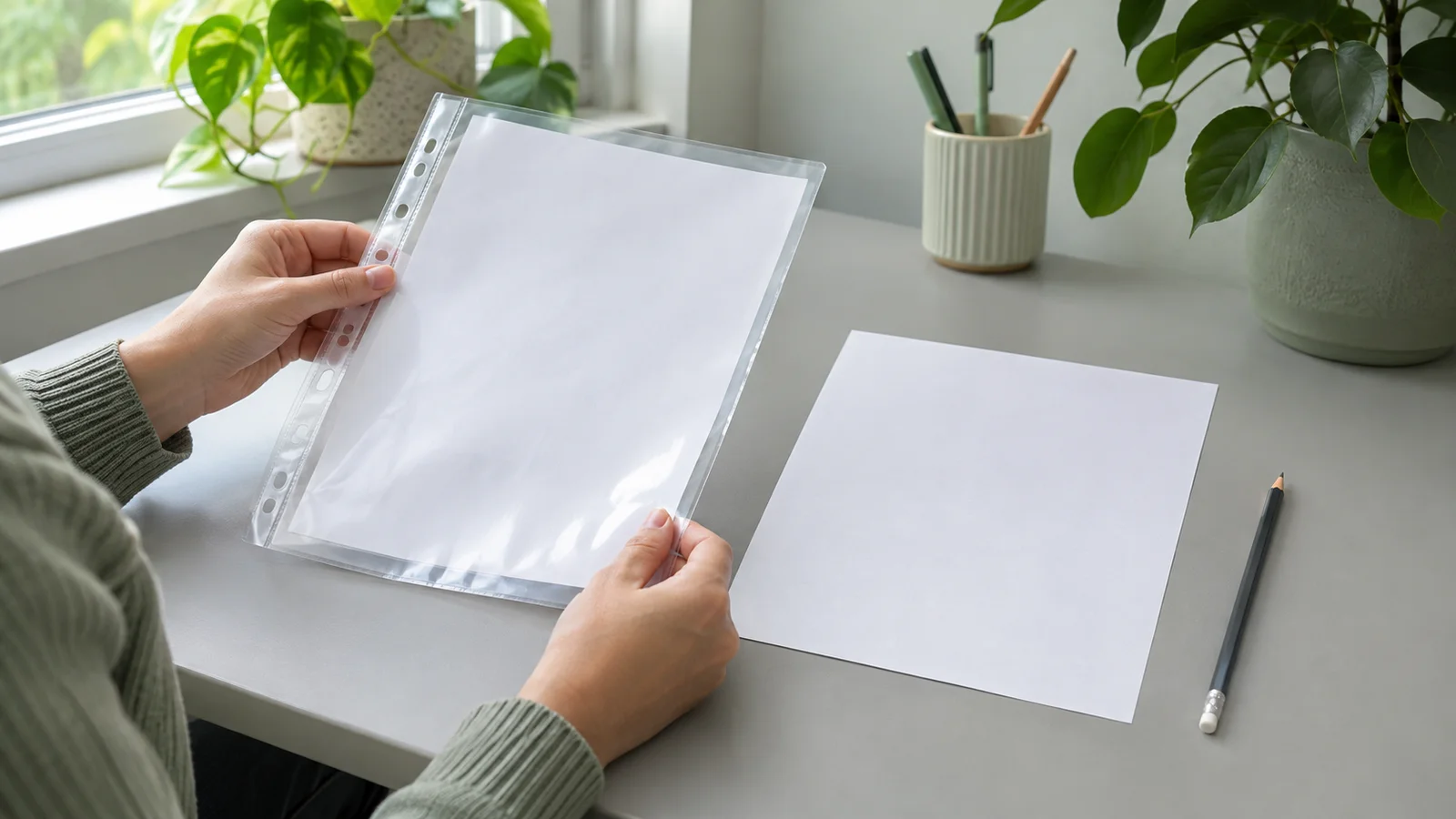
Keep an original scan before editing
Keep a saved scan separate from your working copy, so a crop or annotation does not become your only version.
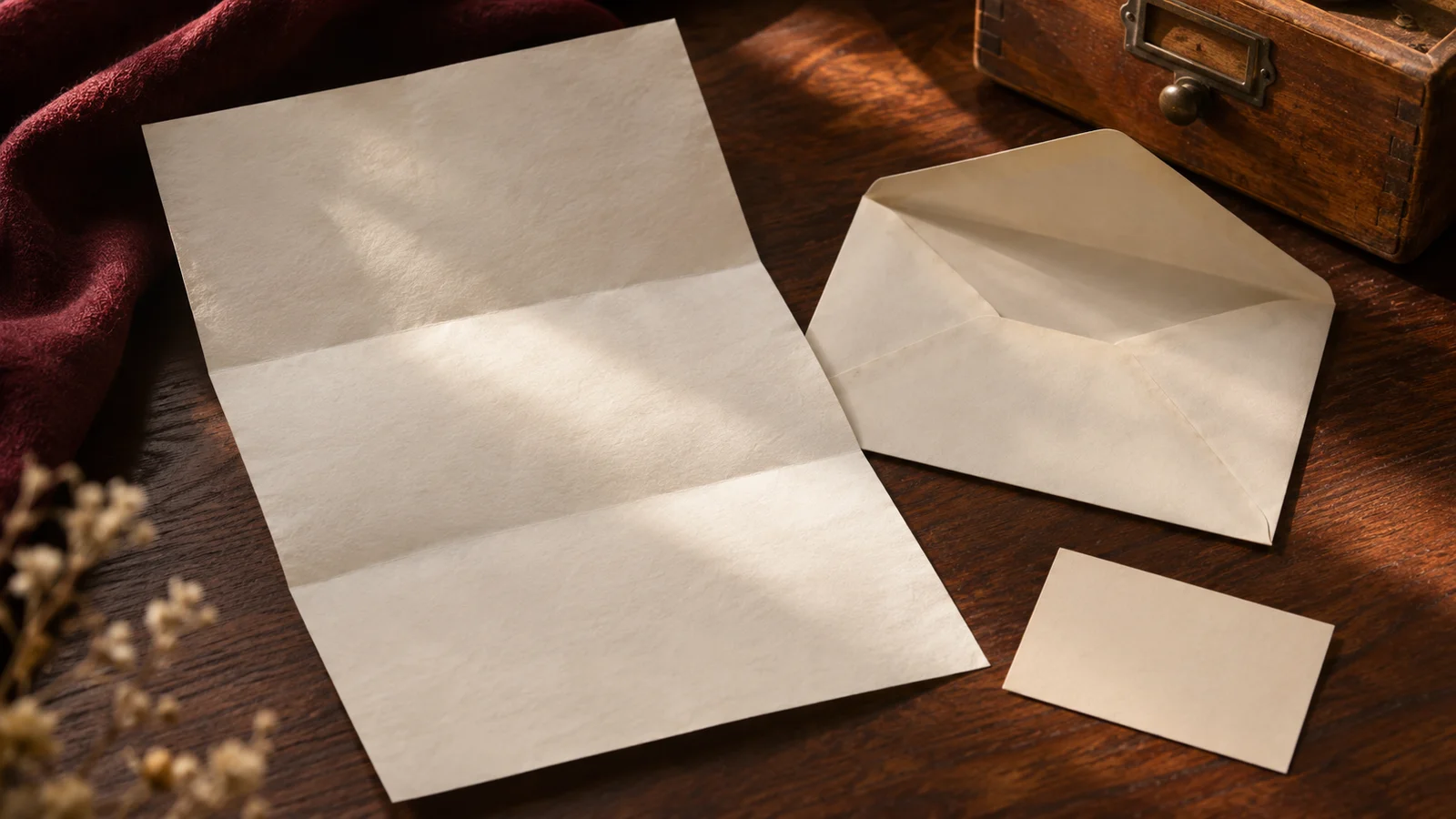
Keep context with scanned letters
A letter is easier to understand when its envelope and a short note stay with the scan. Start with one small set.
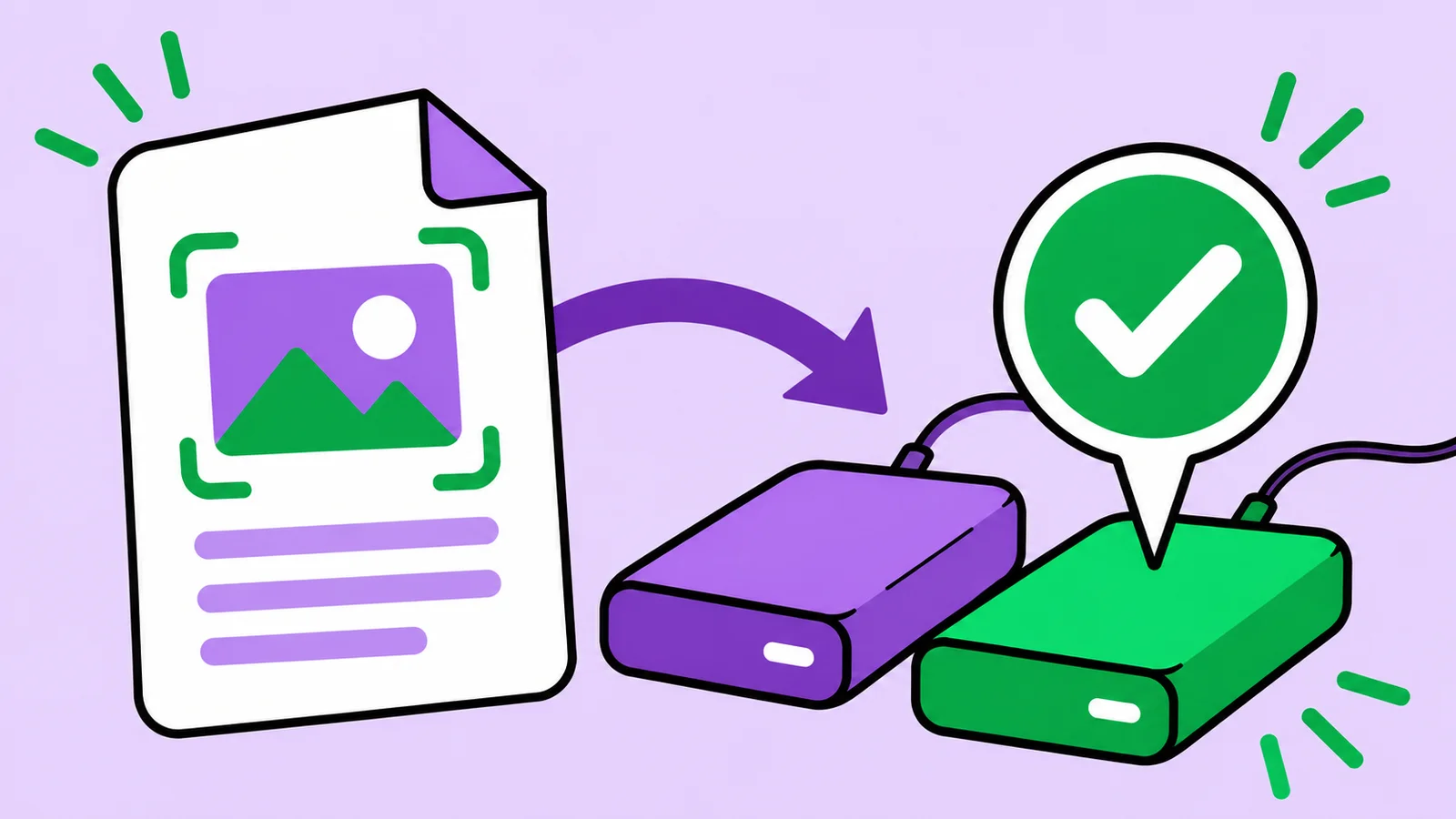
Check your scan backup by opening it
A saved copy deserves a small retrieval test. Start with one document, open the backup, and leave yourself a repeatable routine.
Name scanned files so you can find them later
Give each scan a useful name without turning your folders into another project. Start with one small batch and a repeatable pattern.
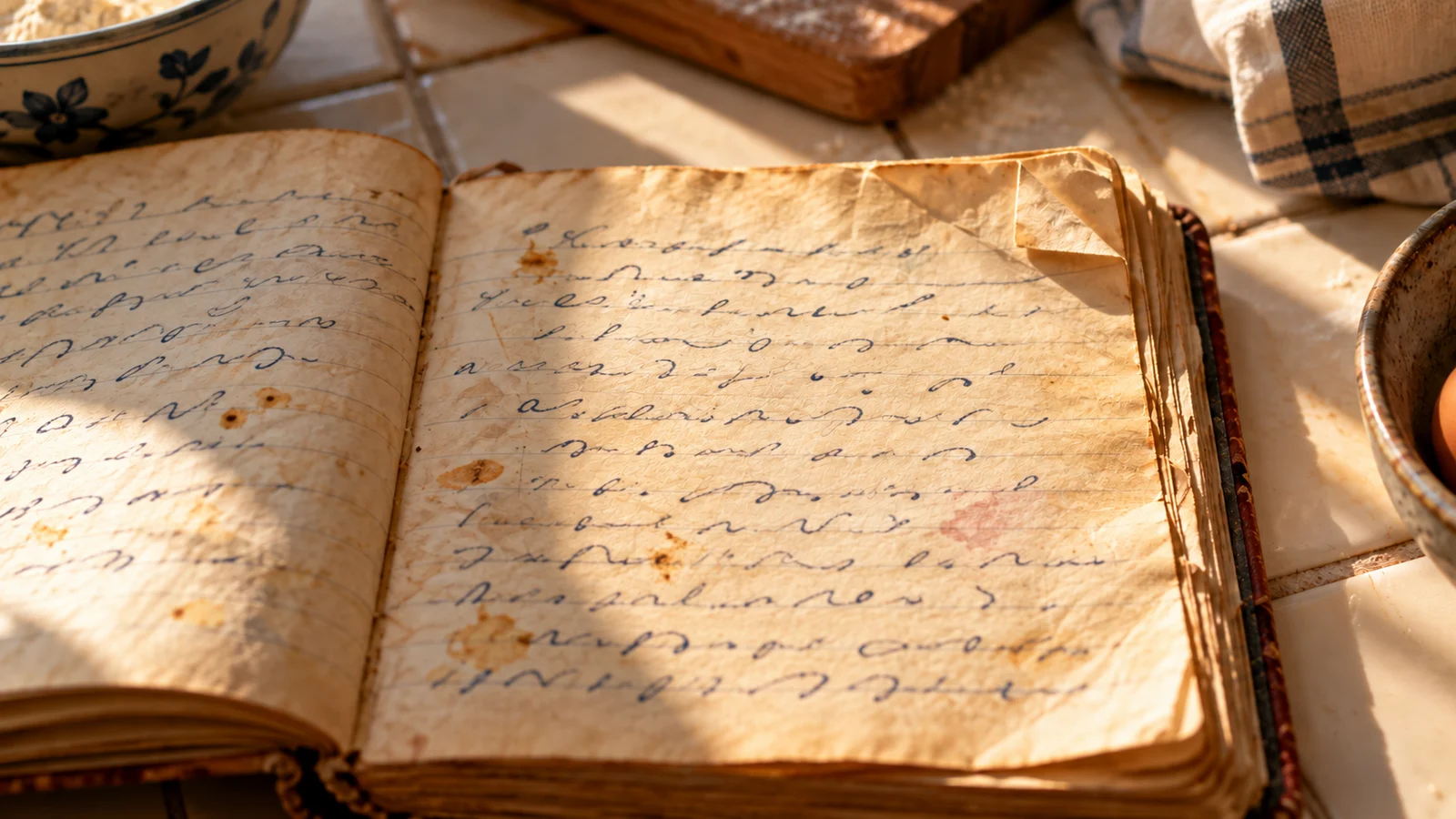
Save a handwritten recipe without losing its character
Keep the page, the handwriting and the story together. Create a readable digital copy, then add the details that only the family knows.
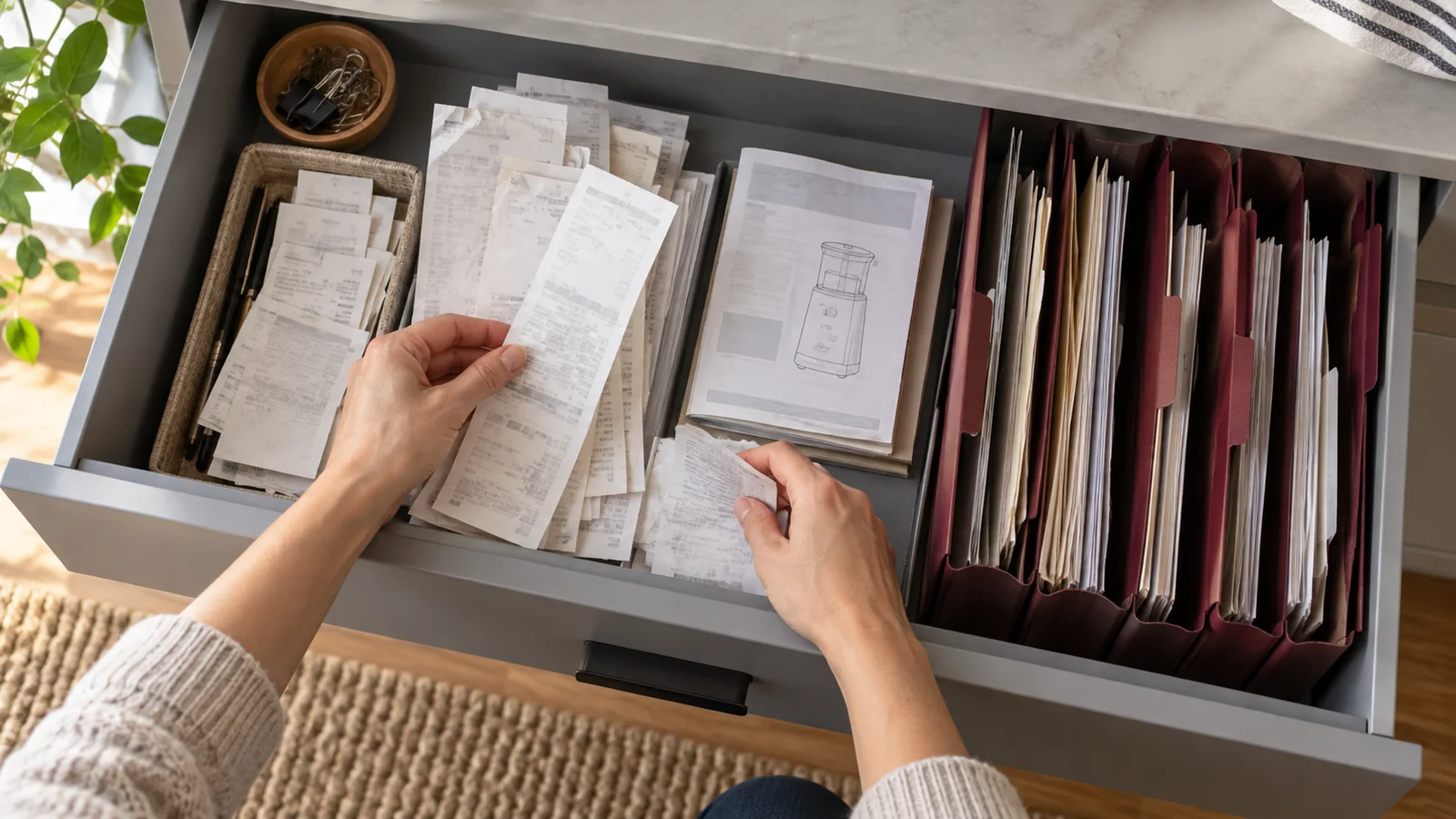
Keep receipts and manuals where you can find them again
Give everyday paper a simple place to live. Use a consistent filename, useful context and an exported copy you can open outside the scanner.
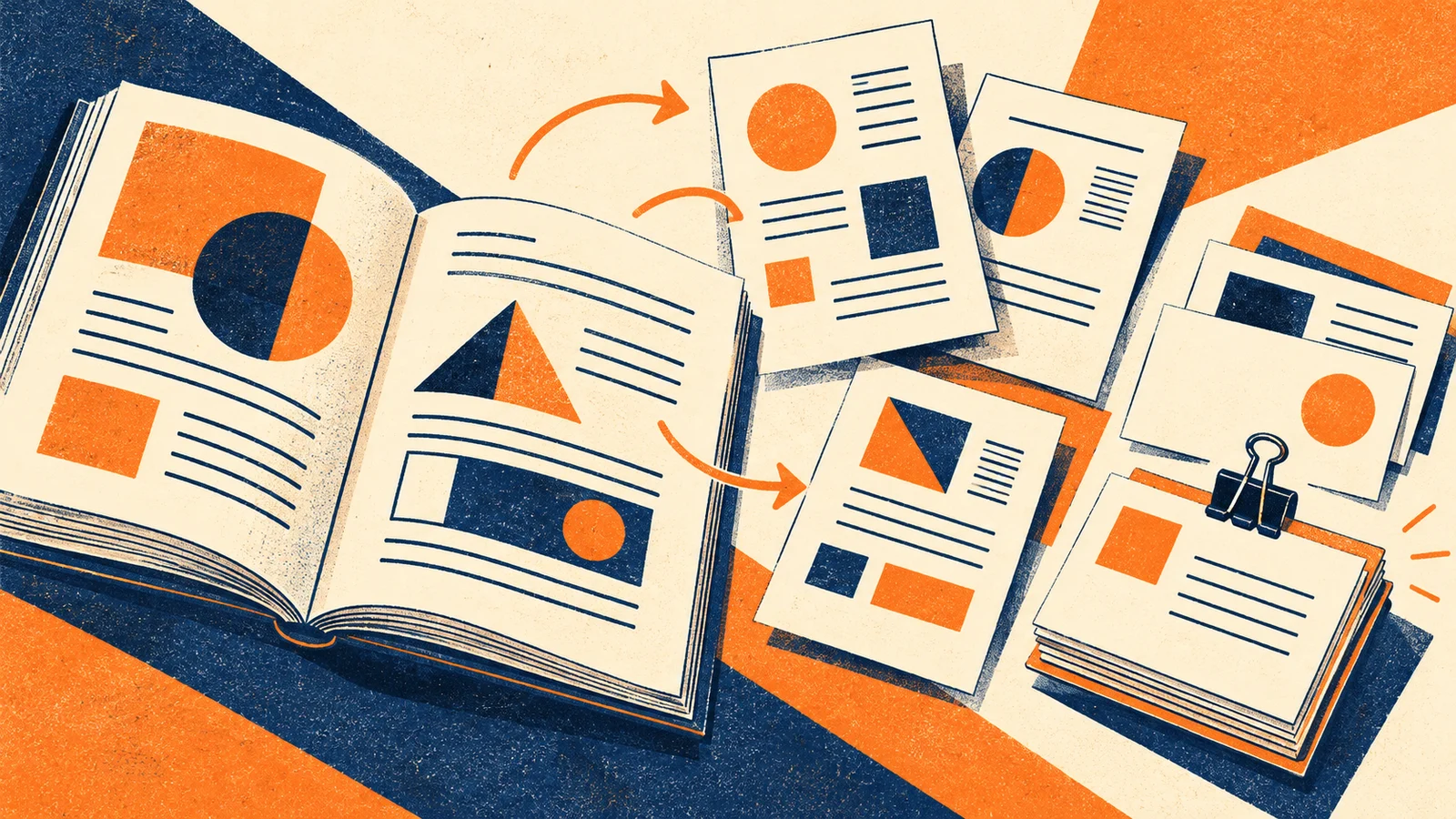
Turn a scanned chapter into a useful study packet
Build a small set of source pages, questions and notes that you can return to. Keep book details and page numbers attached to the material.
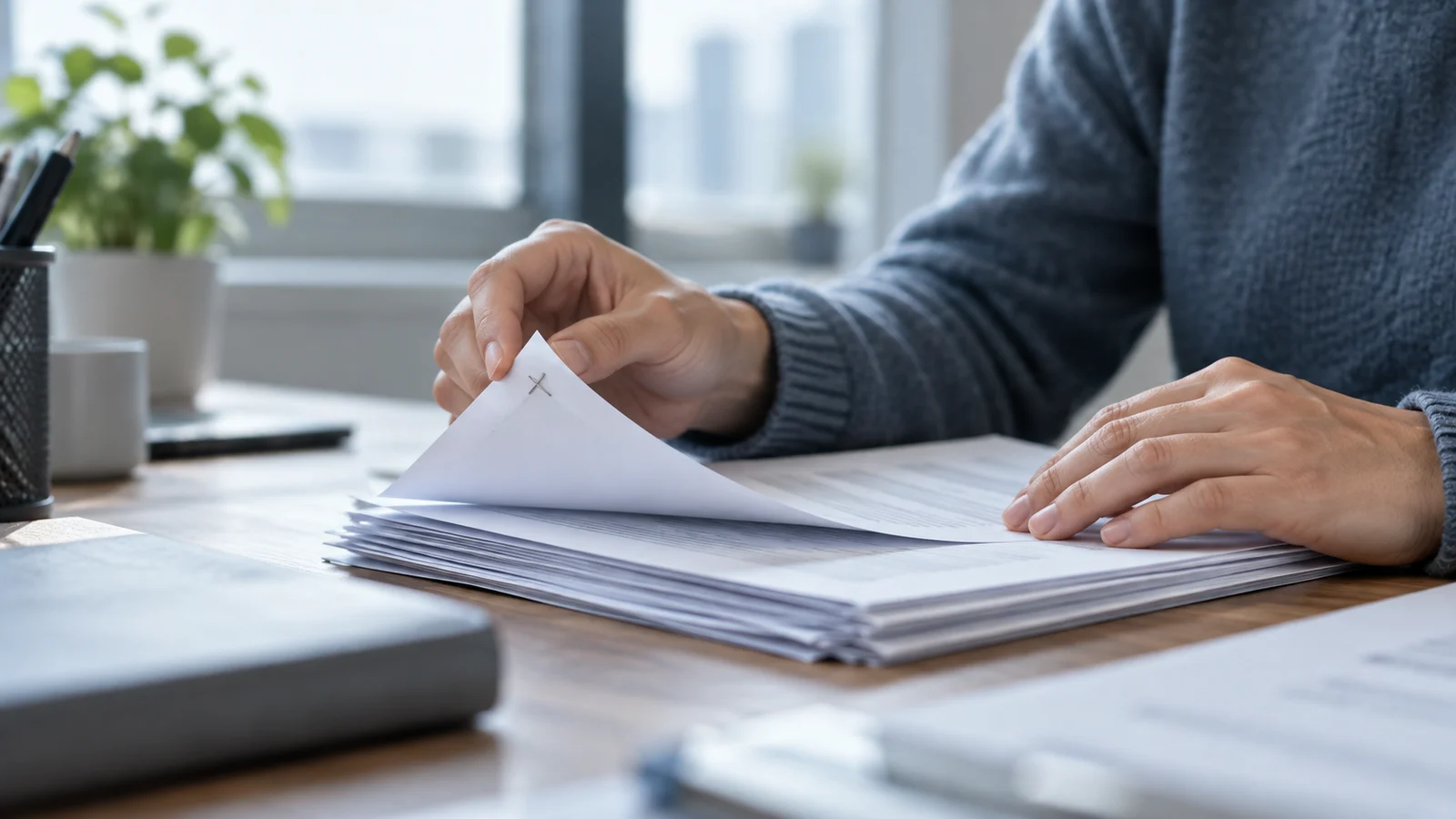
Before you send a scanned document, check the file
A clear preview is only the start. Check small print, page order and the exported copy before your scan reaches someone else.
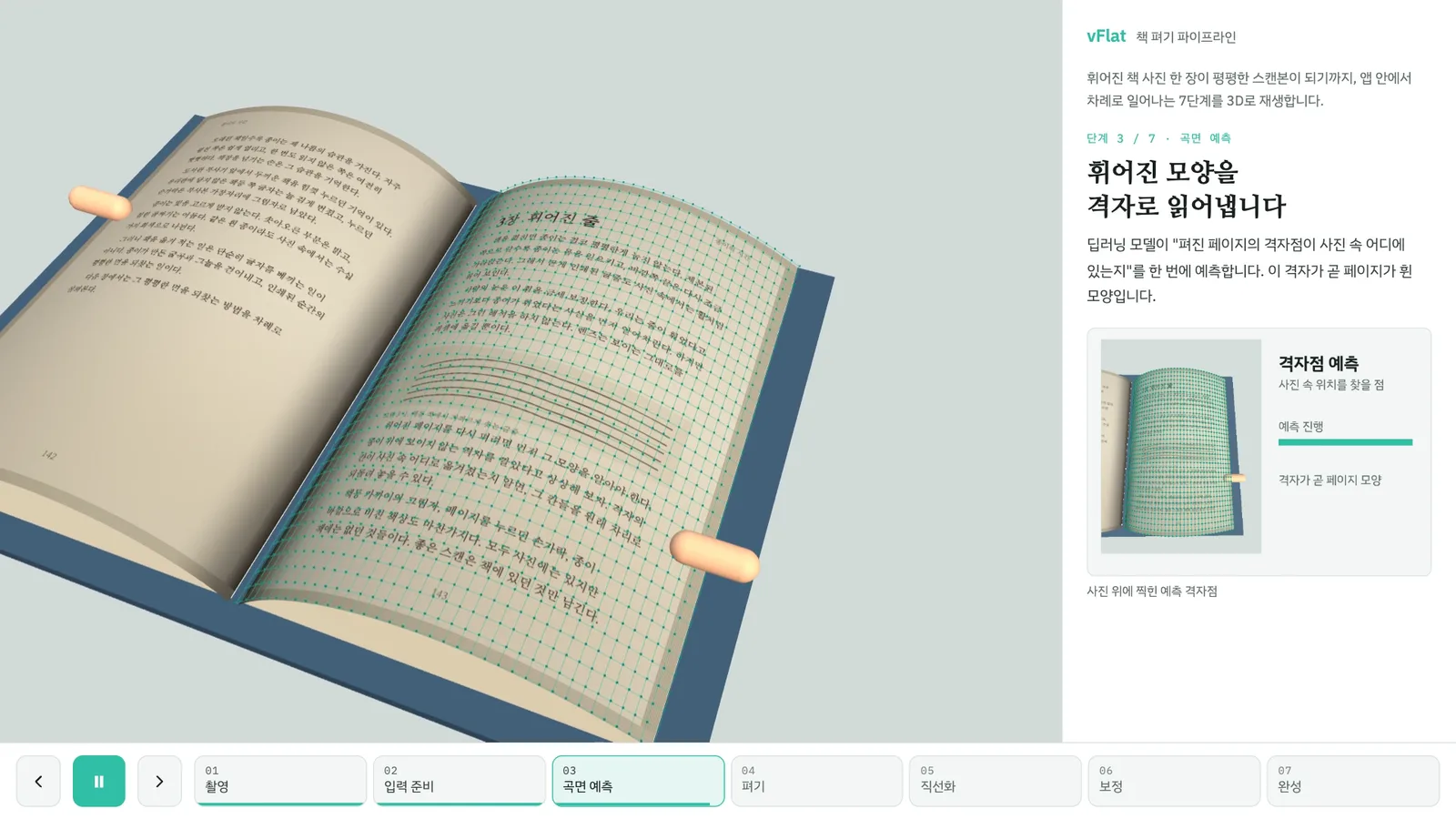
From a curved book photo to a flat scan
Photograph an open book and vFlat shows you a flat, straight page. Here is what happens inside the app after you press the shutter, shown with a 3D demo from the vFlat development team.
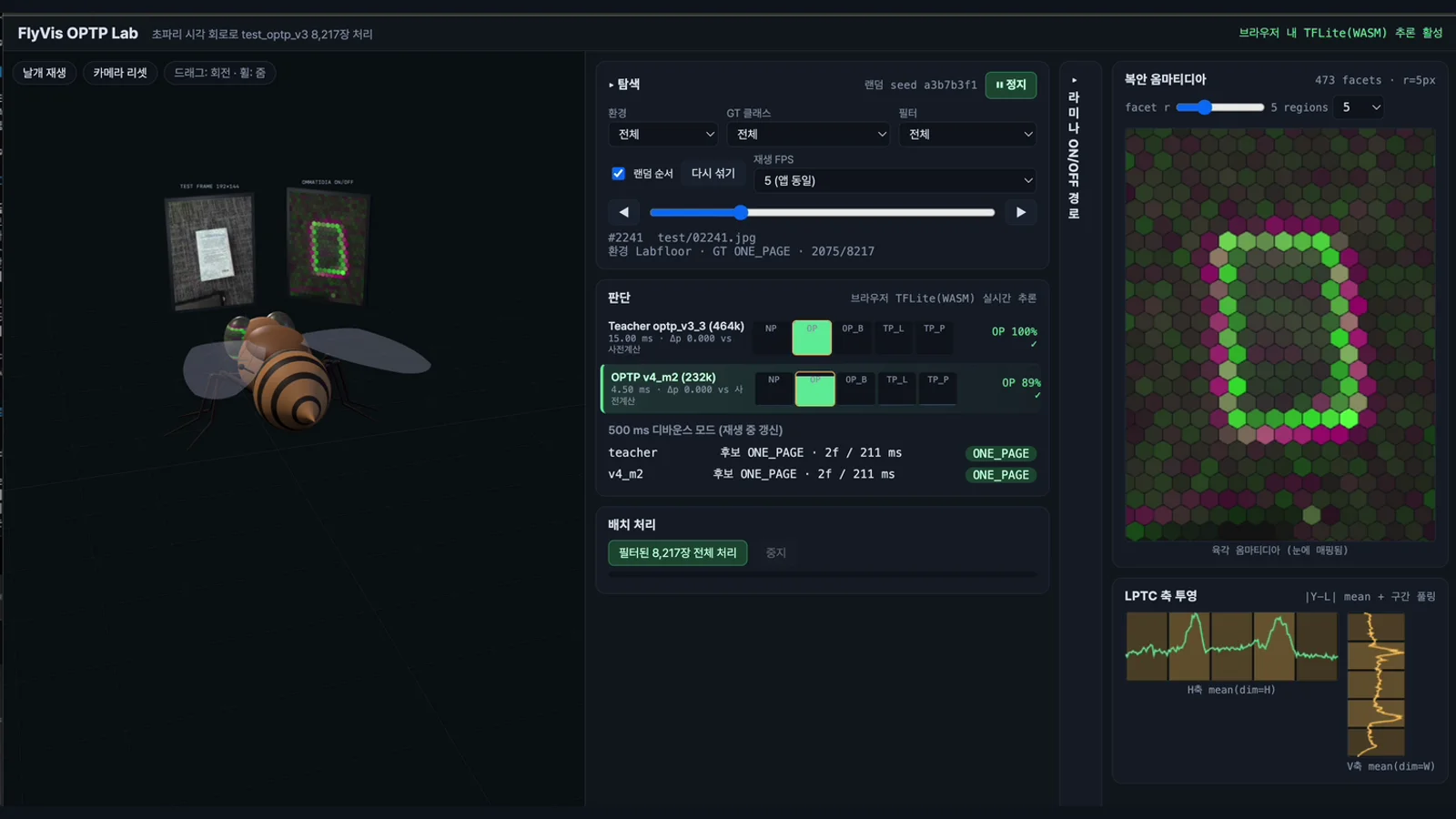
A hint from fruit-fly vision, a lighter page recognition model
Half the model parameters, with internal test accuracy rising from 96.5% to 98.6%. A look at an experimental approach inspired by fruit-fly vision research.
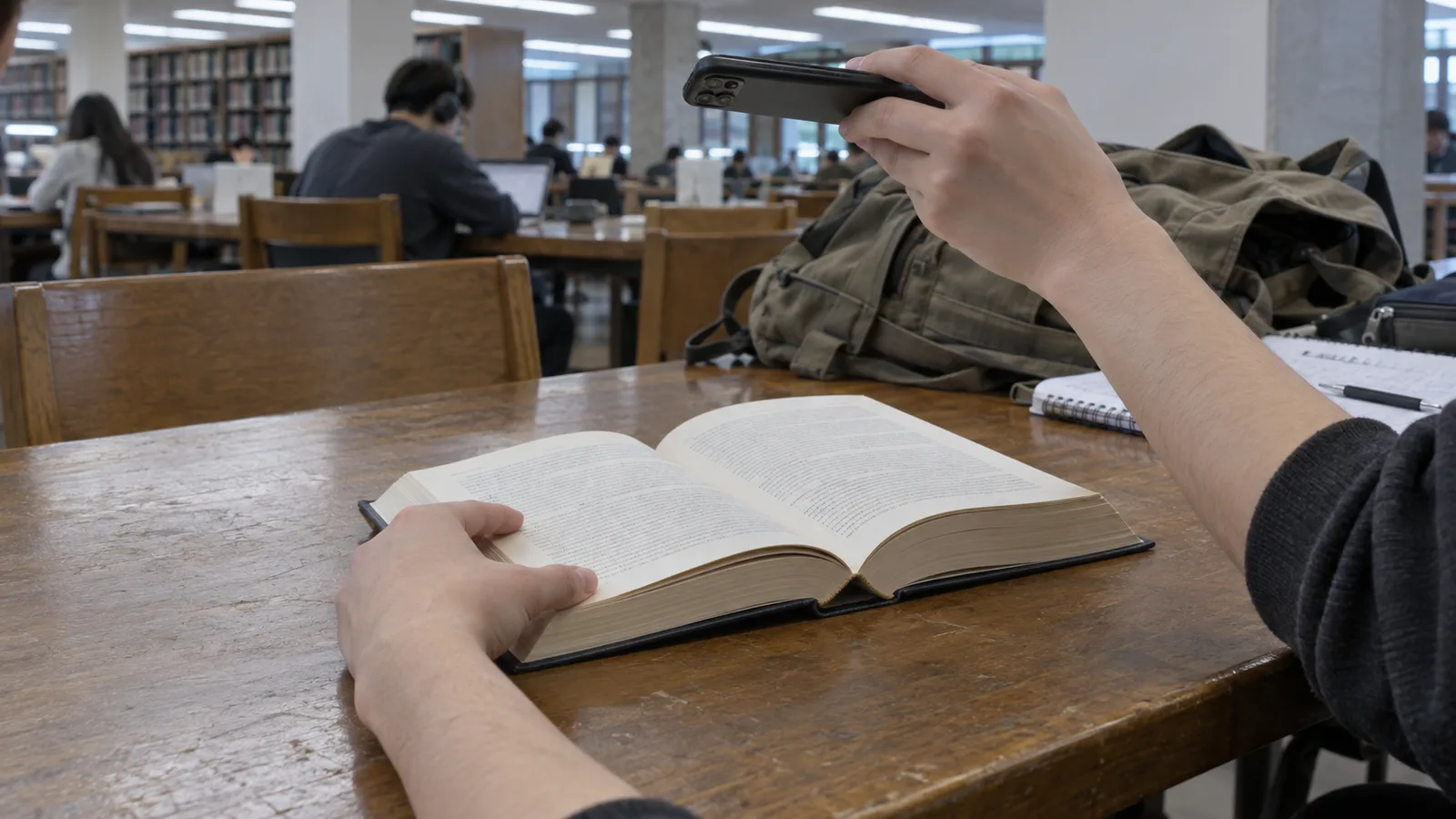
How to scan a book without cutting it
You do not have to take a book apart to digitize it. Here is a setup that gets flat, readable pages from a book that stays on the shelf afterwards.
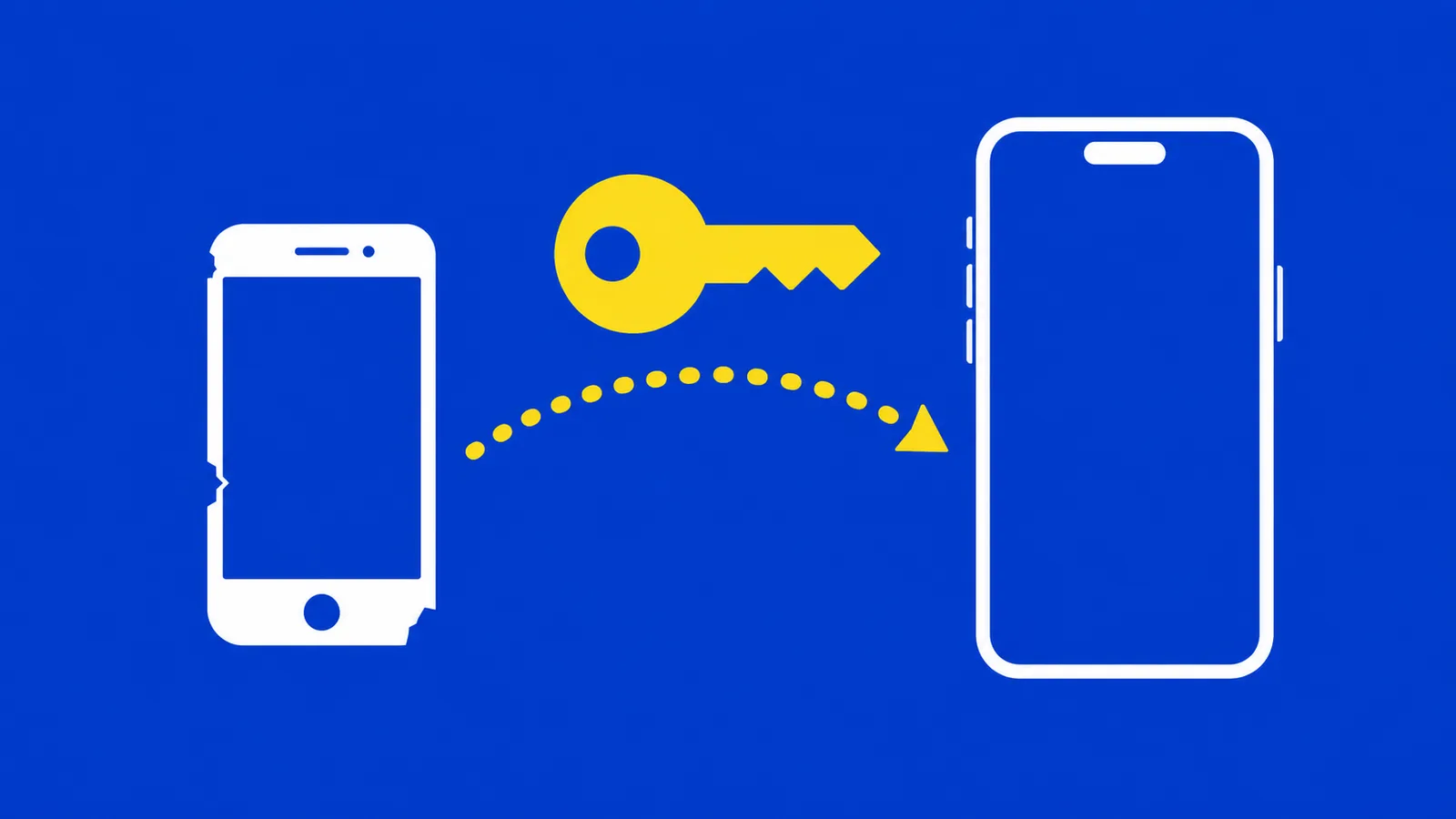
Cancelling, restoring and moving your subscription to a new phone
Where the subscription lives, what happens when you cancel, and why iOS and Android are separate.
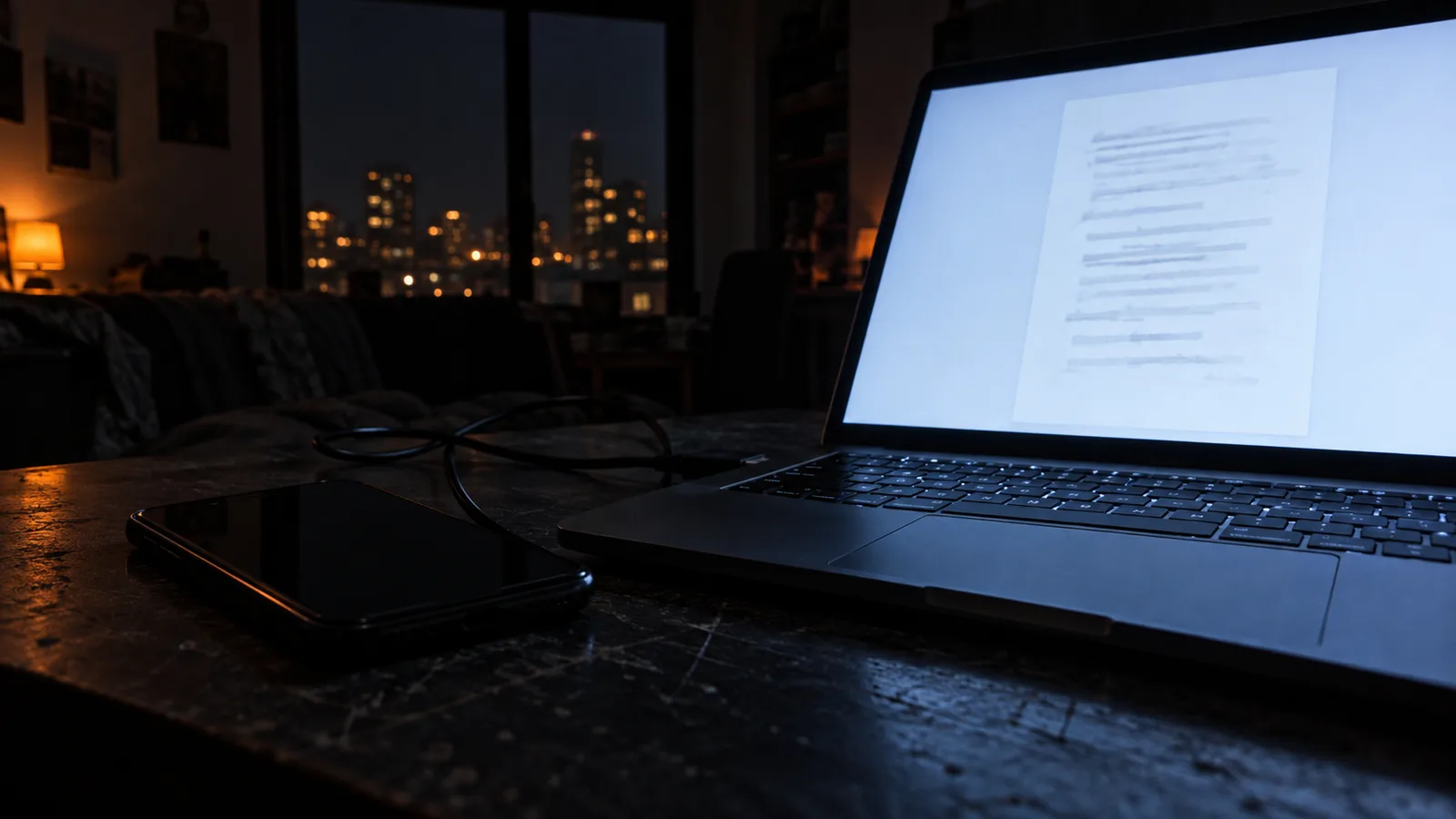
Send to PC: get your scans on your computer as you shoot
Set up vFlat Desktop once, and every scan you send lands on your computer right away — no cable, no emailing files to yourself.
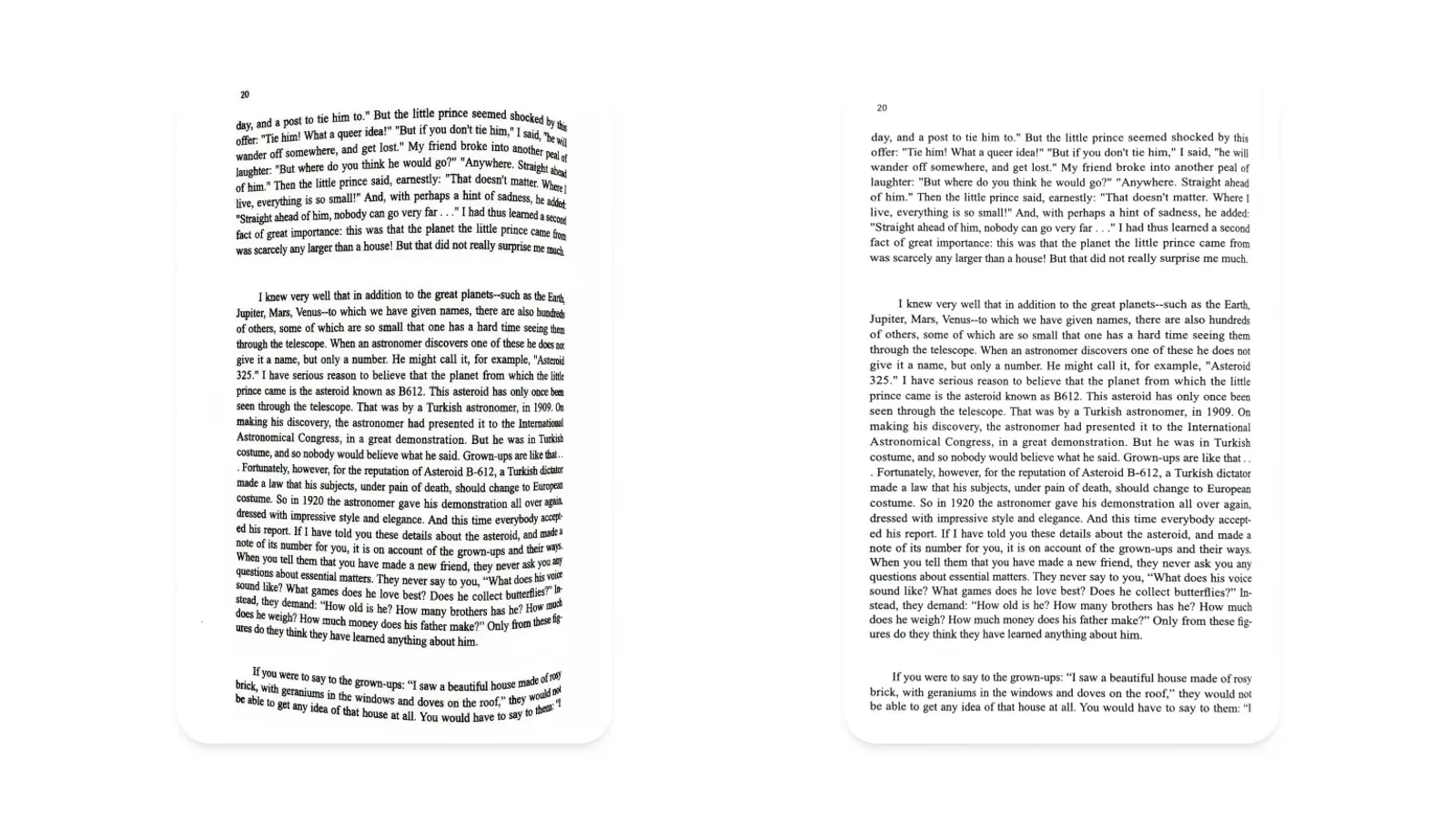
Curves? Flattened.
Our AI de-warps the natural curve of an open book, so every page comes out flat as if it went through a flatbed scanner.
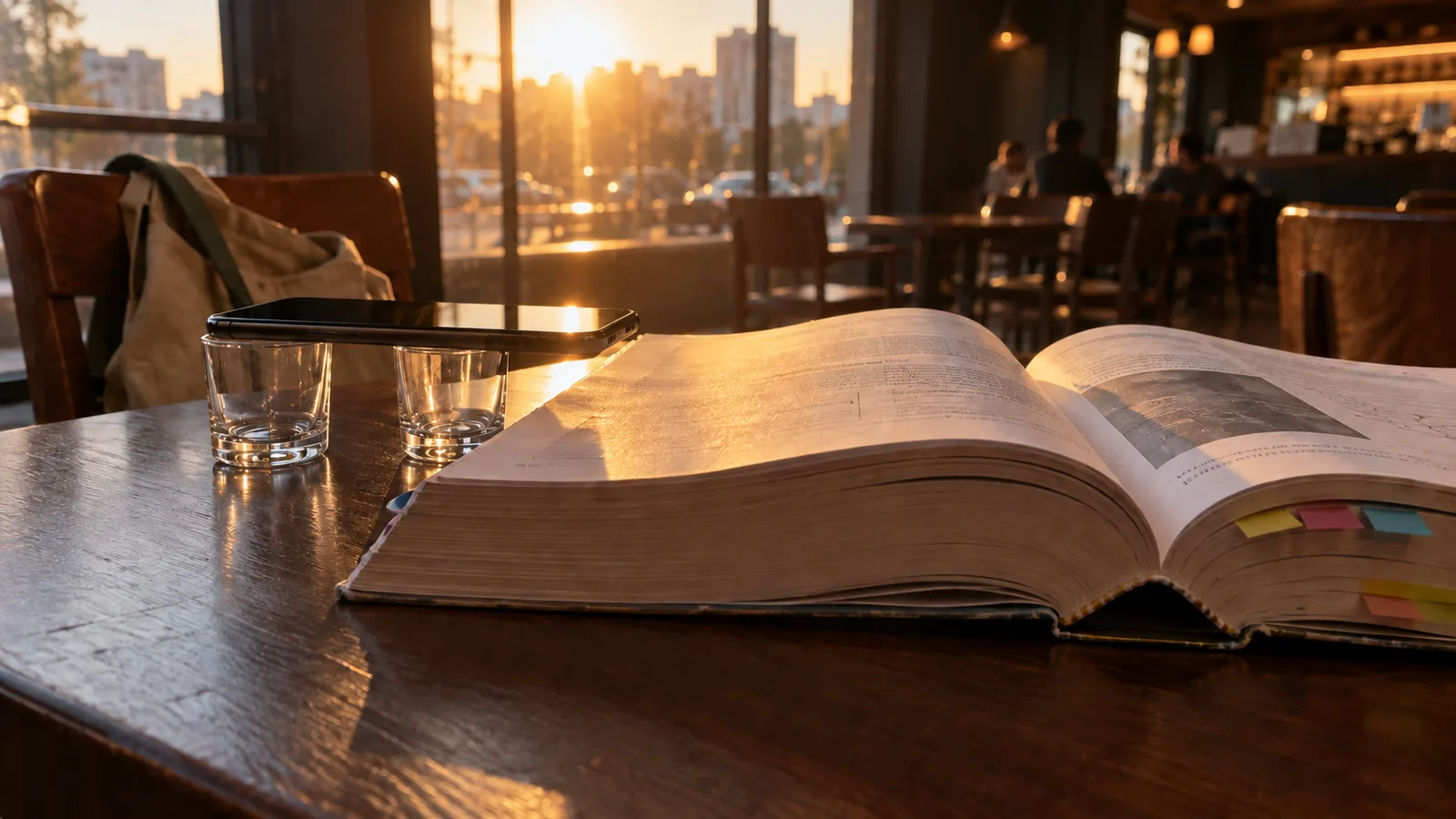
Scanning a 300-page book in one sitting
Auto-capture and dual-page splitting turn what used to be a weekend project into an afternoon.
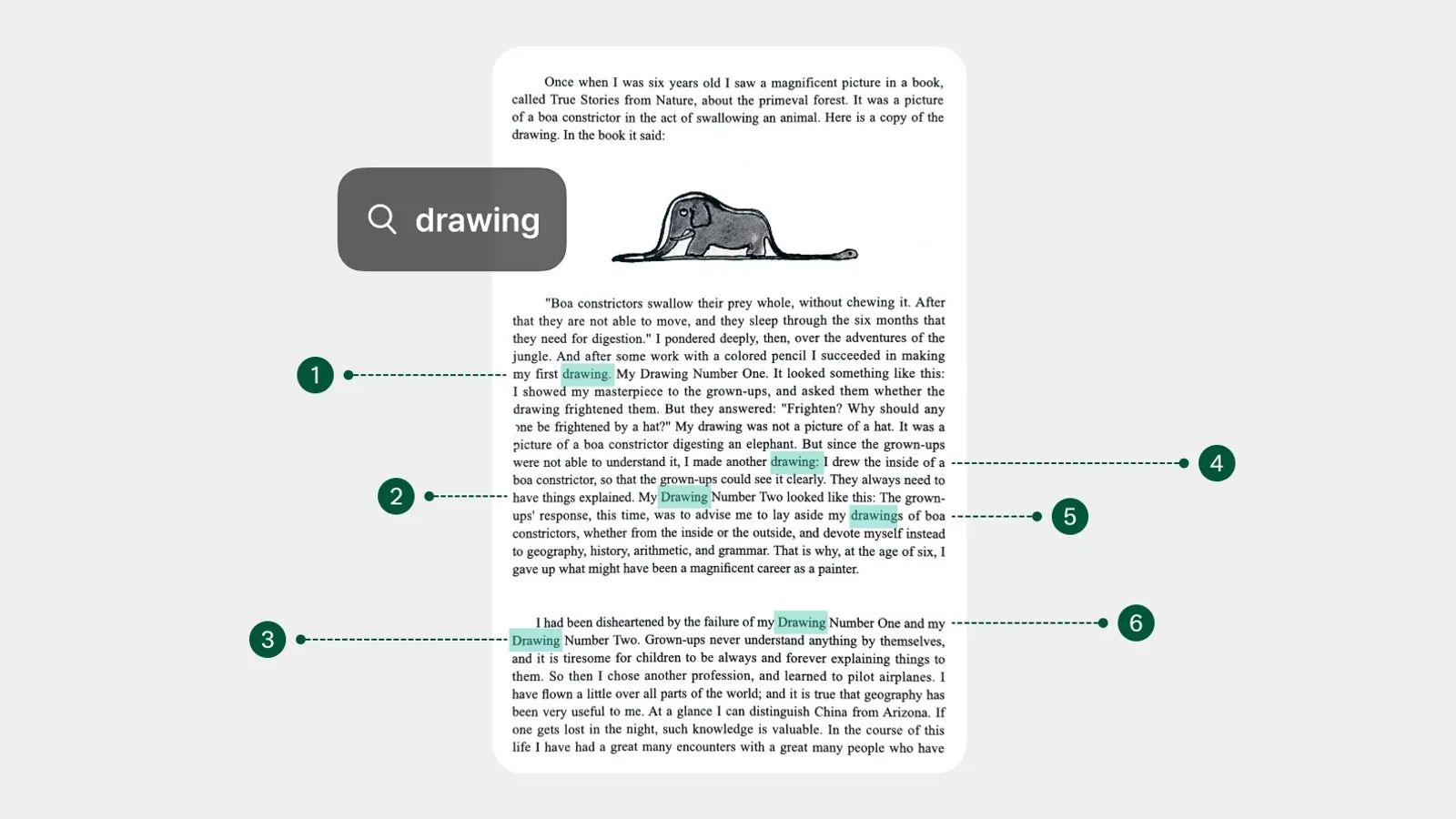
What makes OCR accurate on a phone camera
Resolution matters less than you would think. Here is what actually moves recognition accuracy.
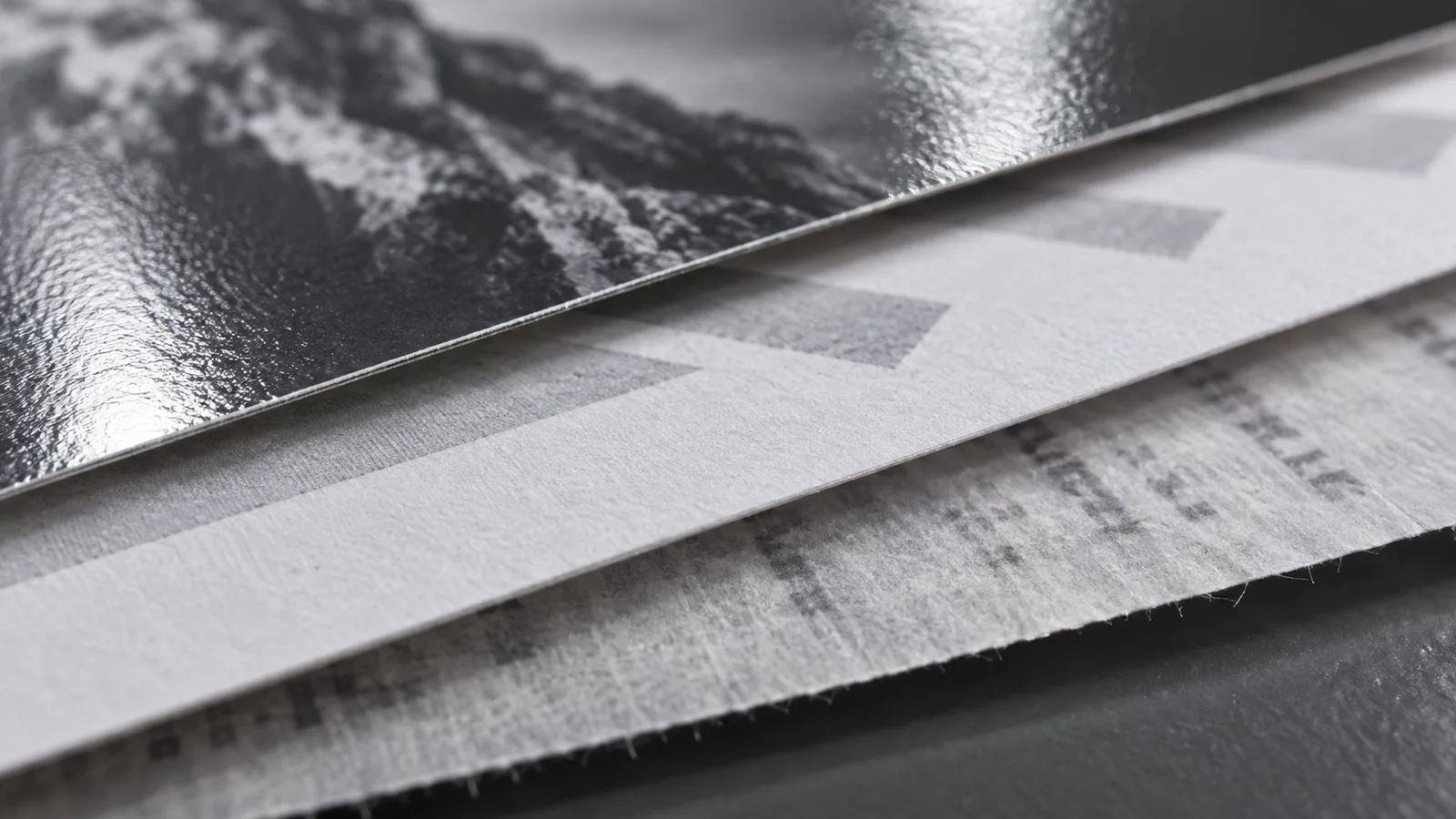
Choosing between PDF, JPG and text export
Each export keeps something different. A short guide to picking the right one for the job.
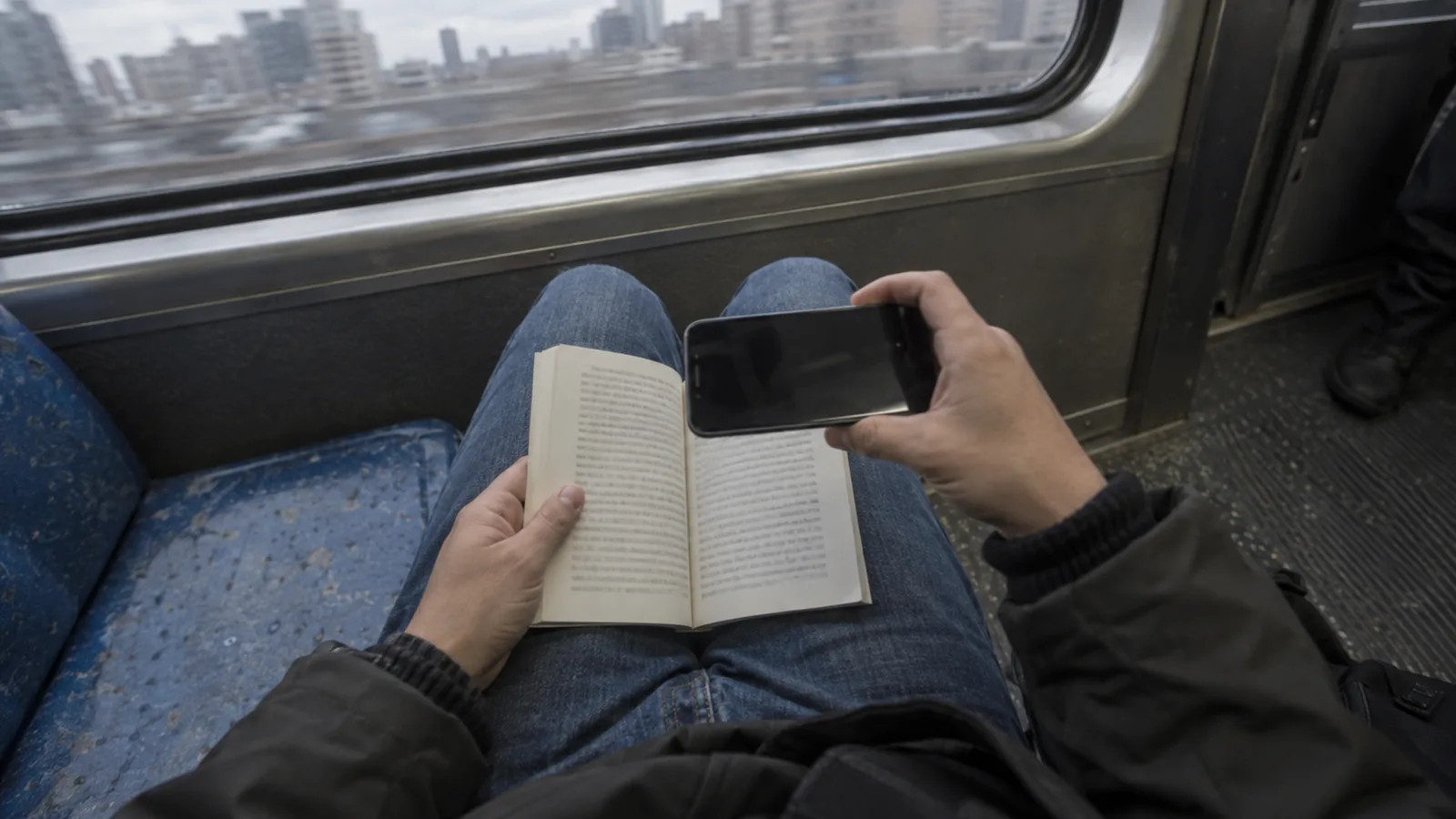
What stays on your phone, and what leaves it
Scanning and flattening run on your phone. Text recognition and Send to PC use our servers, and those images are deleted within 24 hours.